

AVG Secure VPN For Windows Latest Version

Free download AVG Secure VPN For Windows Latest Version 26.5.12287.16204 10MB · Windows · 39,195 downloads

Overview

AVG Secure VPN for Windows is a virtual private network service designed to encrypt your internet connection and mask your real IP address. Once connected, your device’s traffic is routed through one of AVG’s remote servers, so websites, advertisers, and your internet service provider see the VPN server’s location instead of your actual one.

For Windows users specifically, AVG Secure VPN comes as a lightweight desktop application with a straightforward interface: pick a server location, click connect, and you’re online through an encrypted tunnel. It’s aimed less at power users who want granular protocol control, and more at everyday people who want privacy and security without having to learn how VPNs work first.

It’s worth noting that AVG Secure VPN isn’t a free product. It runs on a subscription model, usually offered with a short free trial so you can test the waters before committing to a plan. It’s often bundled together with AVG’s other security tools like AVG Internet Security or AVG Ultimate for people who want antivirus, VPN, and system tune-up in one package.
Features

AVG Secure VPN keeps its feature list fairly focused rather than overloaded, which is part of its appeal for non-technical users. Here’s what you get:

  • 256-bit AES Encryption: The same level of encryption used by banks, which scrambles your data so it’s unreadable to anyone trying to intercept it.
  • IP Address Masking: Hides your real IP address and replaces it with one from the VPN server, making it harder for websites and advertisers to track your location or identity.
  • One-Click Connection: A simple toggle to connect or disconnect, plus the option to auto-select the fastest available server based on your location.
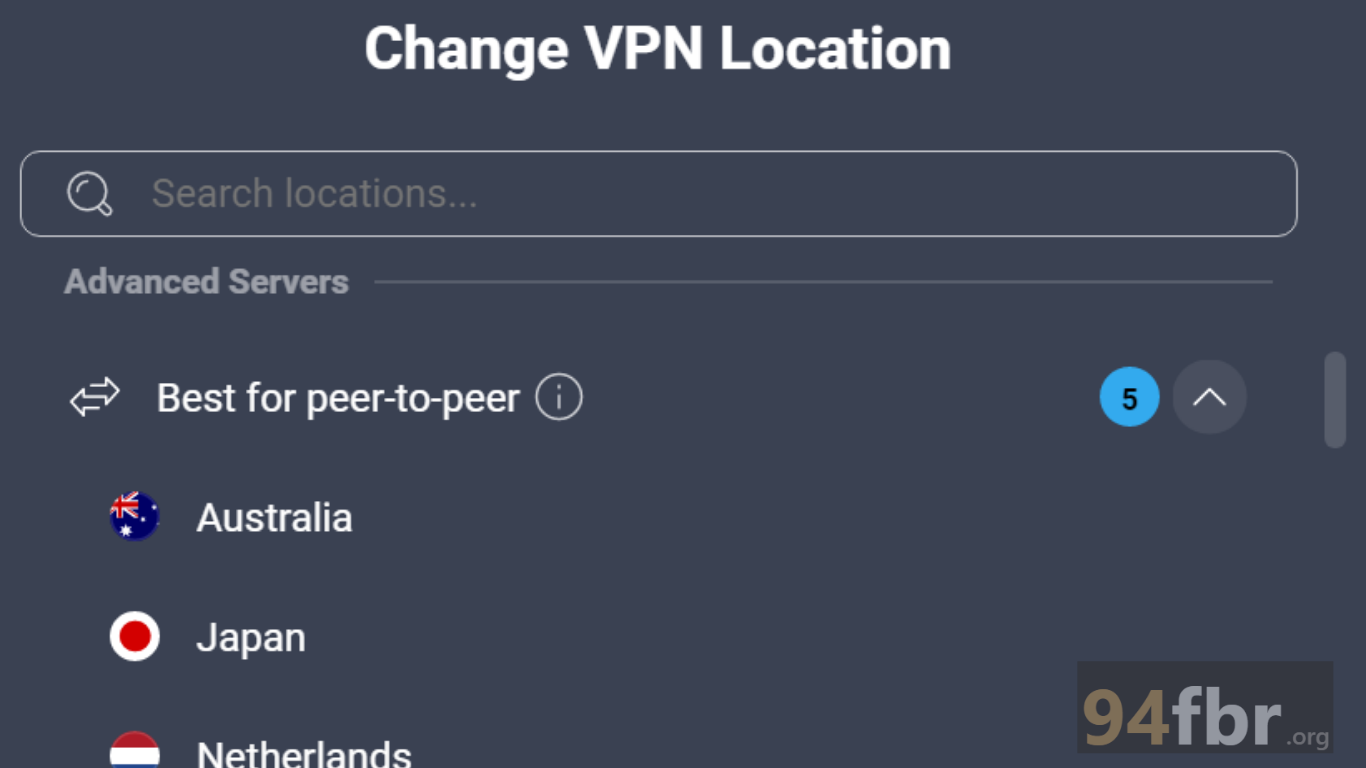
  • Multiple Server Locations: Access to servers spread across dozens of countries, useful for reaching geo-restricted content or simply choosing a connection point closer to you for better speed.
  • Public Wi-Fi Protection: Automatically secures your connection when you join an open or unsecured Wi-Fi network, such as those at cafés, airports, or hotels.
  • No-Logs Approach: AVG states that it does not log your browsing activity, though it’s worth reading their privacy policy directly for the specifics on what data is and isn’t collected.
  • Multi-Device Support: A single subscription typically covers several devices at once, letting you protect your Windows PC alongside your phone or laptop.
  • Kill Switch (on select plans): Cuts your internet connection automatically if the VPN drops, so your real IP is never accidentally exposed.

Pros

  • Clean, beginner-friendly interface that doesn’t require any technical know-how
  • Backed by AVG, a long-established and recognizable name in cybersecurity
  • Strong encryption standard (AES-256) that meets industry expectations
  • Works reliably for streaming, browsing, and general privacy protection
  • Easy installation process that takes just a few minutes
  • Available across Windows, Mac, Android, and iOS under one subscription

Cons

  • No free-forever tier only a limit trial before payment is required
  • Fewer advanced features (like split tunneling or protocol selection) compared to dedicated VPN-only providers
  • Smaller server network than some of the bigger, VPN-specialist competitors
  • Logging policy isn’t independently audited, which may concern privacy purists
  • Subscription auto-renews unless manually cancelled, which can catch some users off guard

System Requirements

Before downloading, make sure your Windows PC meets these baseline requirements. AVG Secure VPN is lightweight, so most machines built in the last several years will handle it without issue.

  • Operating System: Windows 7 (SP1), Windows 8 / 8.1, Windows 10, or Windows 11
  • Processor: Intel Pentium 4 / AMD Athlon 64 or higher
  • RAM: 1 GB or more
  • Free Disk Space: At least 100–500 MB
  • Internet Connection: Required for installation, activation, and ongoing use (a VPN obviously can’t function offline)
  • Administrator Access: You’ll need admin rights on the PC to complete installation

How to Install AVG Secure VPN on Windows

Getting AVG Secure VPN up and running on your Windows machine is a short process. Here’s how it typically goes:

  1. Visit the official AVG website. Always download directly from AVG’s official page or an authorized reseller to avoid fake or tampered installers.
  2. Choose your plan. Select the subscription length and number of devices that fits your needs. Then complete the purchase (or start the free trial if one is available).
  3. Download the installer. After purchase, you’ll either be redirect to a download link or sent one via email save the setup file to your PC.
  4. Run the setup file. Double-click the downloaded file and allow it through Windows’ User Account Control prompt if asked.
  5. Follow the on-screen instructions. The installer will guide you through a few simple steps accept the license agreement and choose your installation folder if prompted.
  6. Sign in with your AVG account. Once installed, open the app and log in using the account credentials created during purchase.
  7. Connect to a server. Choose a location from the list (or let the app auto-select the fastest one) and click the connect button.
  8. Verify your connection. You can check that your IP address has changed by visiting any “what’s my IP” site if it shows a different location than your own, you’re good to go.

Screenshots

AVG Secure VPN For Windows Latest Version screenshot 1
AVG Secure VPN For Windows Latest Version screenshot 2

Requirements

Version
26.5.12287.16204
File size
10MB
Platform
Windows
Requirements
Windows 7 (SP1), Windows 8 / 8.1, Windows 10, or Windows 11, RAM: 1 GB or more
Developer
AVG Technologies
Licence
Paid subscription, with a free trial period
Language
English
Release date
2026
Downloads
39,195

Related in Software

View all

Leave a reply